How to offer a free PDF sample in exchange for an email on Shopify
Give visitors a free sample of your PDF for their email address, add the sign-up form to your Shopify product page, and follow up with the tagged customers it creates.
Published 7 min read
On this page
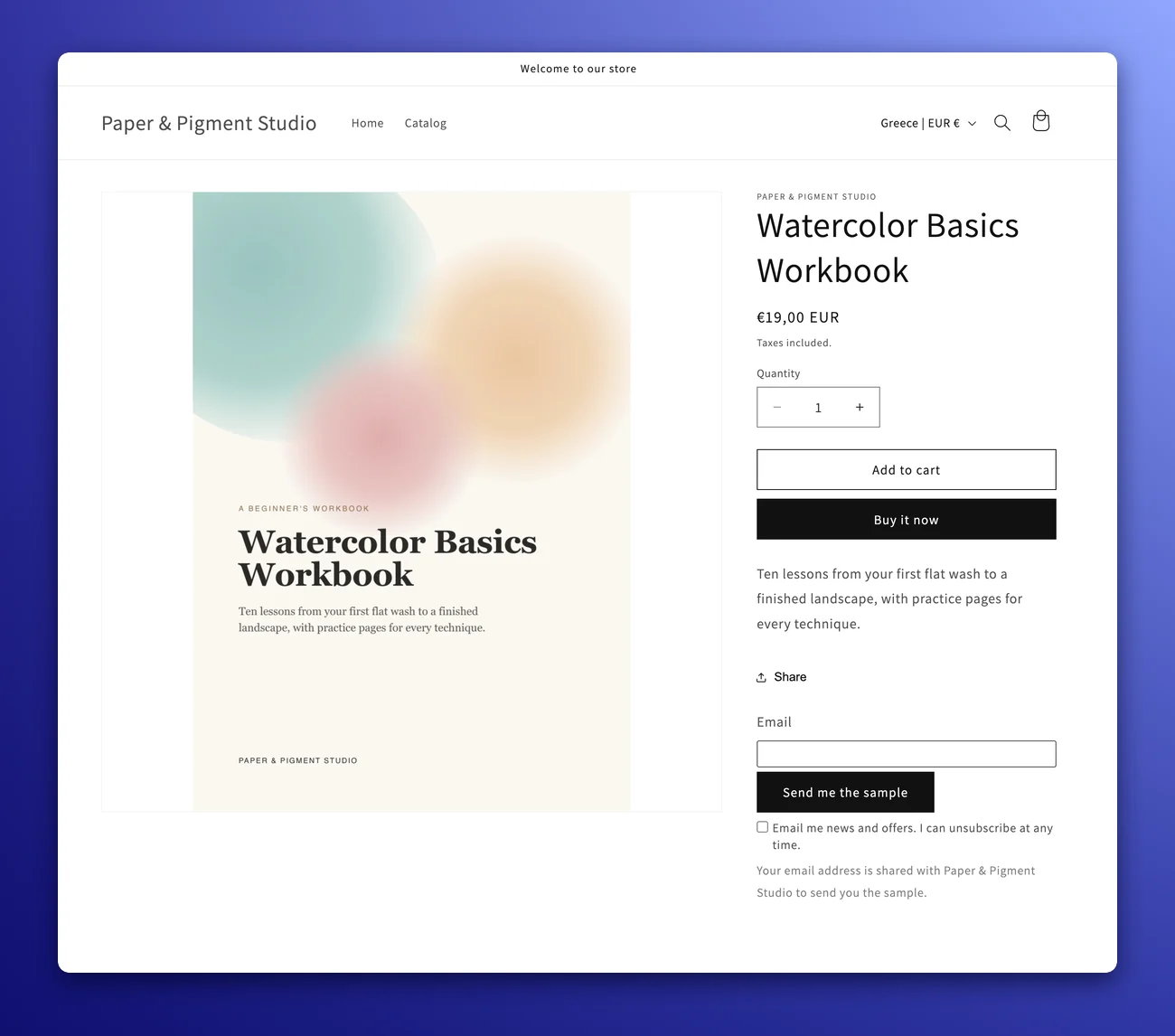
Many visitors aren't ready to buy a PDF on their first visit, and most of them leave without a way for you to reach them again. A free sample gives them something useful to read now and gives you their email address, saved as a customer in your Shopify store. When the sample makes them want the rest, you can send them the full version.
This guide covers what to give away, how to set up a sample with Imprint, how to put the sign-up form on your product page, and how to follow up with the people who sign up. Free samples are included on the Basic and Premium plans.
How the exchange works
- A visitor enters their email on your product page or on the sample page. They can also tick a box to agree to your marketing emails.
- Imprint emails them a link to download the sample.
- Imprint adds them to your Shopify customers, tagged with the product they asked about.
- When they download, the sample is stamped with their email and a copy code, like a purchase.
- If they ticked the box, they're subscribed to your marketing emails when they first download the sample.
Choose what to give away
Imprint gives you two options for each PDF:
- The preview: the first pages of the PDF with an overlay text, the same pages as its public preview. This is the quickest to set up.
- A PDF of its own: a separate file you upload, such as a chapter, one complete pattern or a bonus printable. It counts toward your storage.
Upload a PDF of its own when your first pages are mostly a cover and a contents page, or when you want the sample to be different from what everyone can read. For example, a public preview could show the table of contents to every shopper, while the sample gives a complete first lesson to people who sign up.
Whichever you choose, make the sample something people can use. A lesson they can finish or a pattern they can make shows them what the full PDF is like. A sample that's only a cover gives them no reason to buy the rest.
Turn on the sample
- In Imprint, open the product from the Products page and click Preview PDF Stamp next to its PDF.
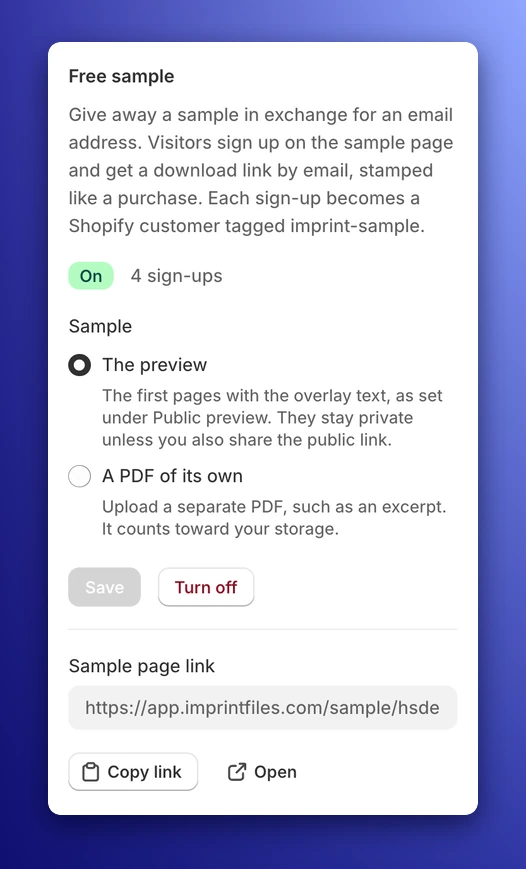
- Find the Free sample section in the right-hand column.
- Under Sample, choose The preview or A PDF of its own, and upload the file if you need to.
- Click Turn on sample.
If you choose the preview and the PDF doesn't have one yet, Imprint builds it first, using your default preview settings. Once the sample is on, the section shows how many people have signed up, the sample page's link and a button code.
If you installed Imprint before free samples arrived, Shopify asks you to approve two new permissions the next time you open it: to manage customers, and to answer requests from your storefront. Until you approve them, samples are still sent, but sign-ups wait to be added to your Shopify customers.
Keep the sample behind the form
If the sample uses the preview and the public preview link is also on, anyone can read those pages without signing up. To keep them for people who sign up, click Turn off public link in the Public preview section. The section then says the pages are kept for your free sample.
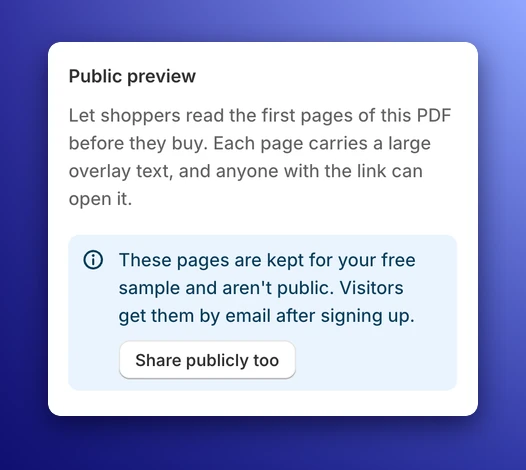
If you'd rather keep a public preview too, give the sample a PDF of its own, so the two don't share pages.
Write the consent text and set the limits
Go to Settings → Samples to set how all your samples work.
- Marketing consent text: the text next to the consent box, up to 500 characters. If you leave it empty, visitors see "Email me news and offers. I can unsubscribe at any time." in their language.
- Extra customer tags: up to 5 tags of your own, added to every sign-up.
- Link expires after (days) and Downloads per link: how long the emailed link works and how many times it can be used. New stores start at 7 days and 3 downloads.
- Redirect URL: a page of your own to send visitors to after they sign up. Leave it empty to show a Check your inbox page.
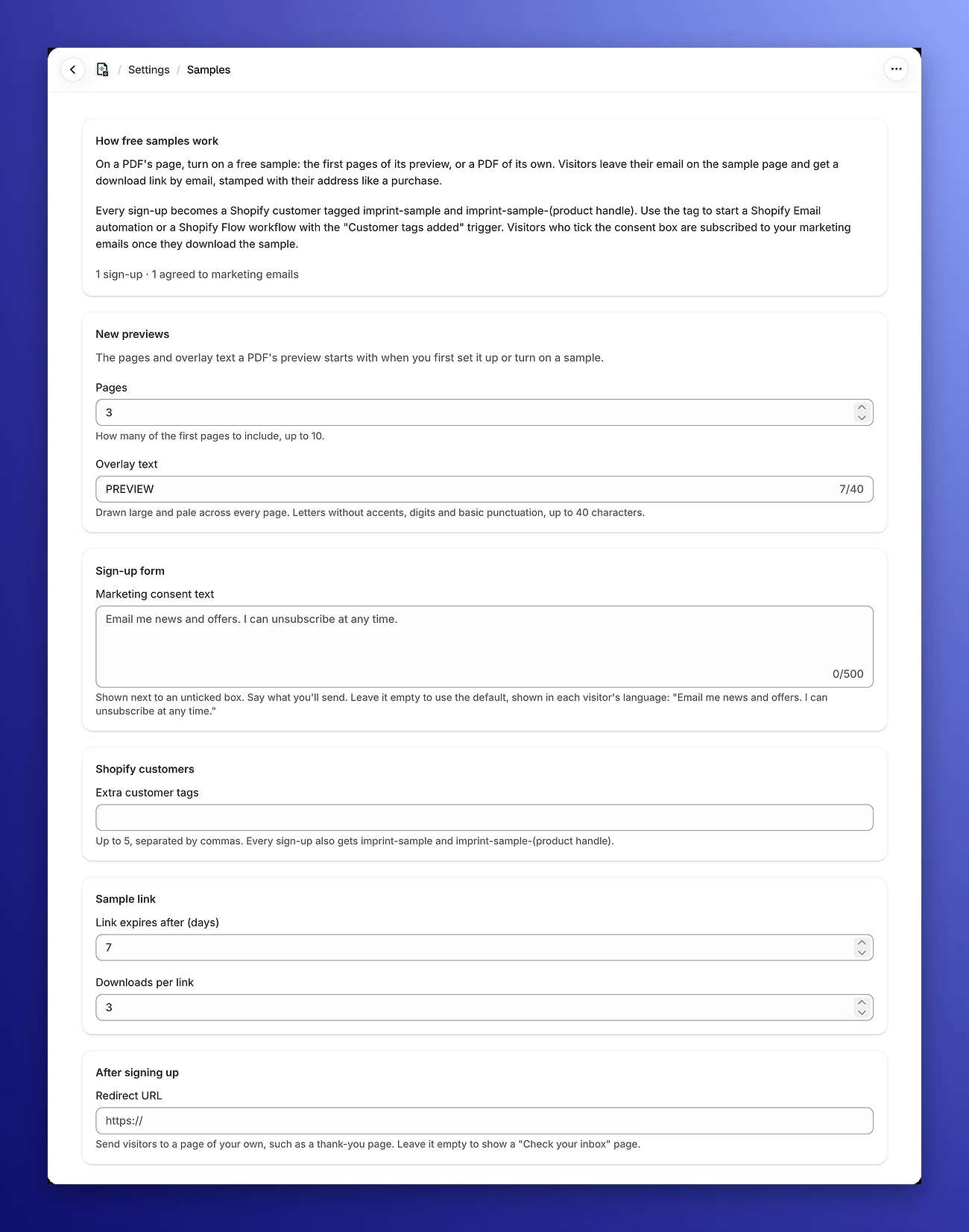
Write consent text that says what you'll send and how often, for example "Email me a new watercolor lesson each month, plus offers. I can unsubscribe at any time." The box is never ticked in advance, and visitors who leave it unticked still get their sample. Imprint keeps the text each visitor agreed to and when they agreed.
The redirect is a good place for a next step. A thank-you page with a discount code for the full PDF reaches people while they're still interested.
Put the sample on your product page
There are three ways to offer the sample. You can use more than one.
The Free sample theme block
The block adds the sample to your product page from the theme editor, without code. It works with any theme that supports app blocks, which includes every Online Store 2.0 theme, such as Dawn.
- In your Shopify admin, go to Online Store → Themes and click Customize.
- Open Products from the page menu at the top and choose your product template.
- Click Add block, open the Apps tab and choose Free sample. Drag it where you want it, for example under the Buy buttons.
- Under Show, choose An email form to let shoppers sign up without leaving the page, or A button to the sample page.
- Click Save.
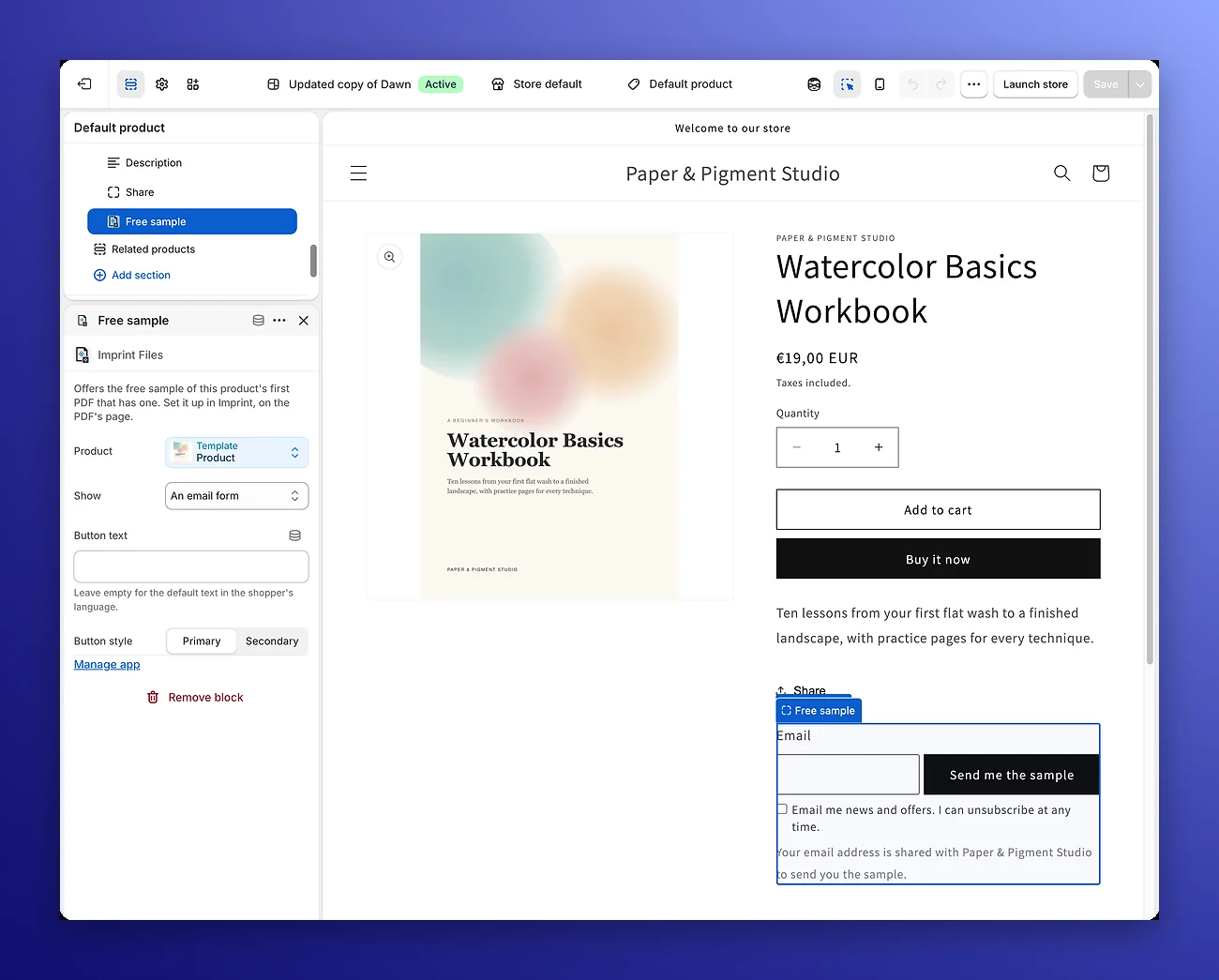
The block shows the sample of the product's first PDF that has one, and stays hidden on products without a sample. The Free Sample Block docs cover every setting.
A button in the product description
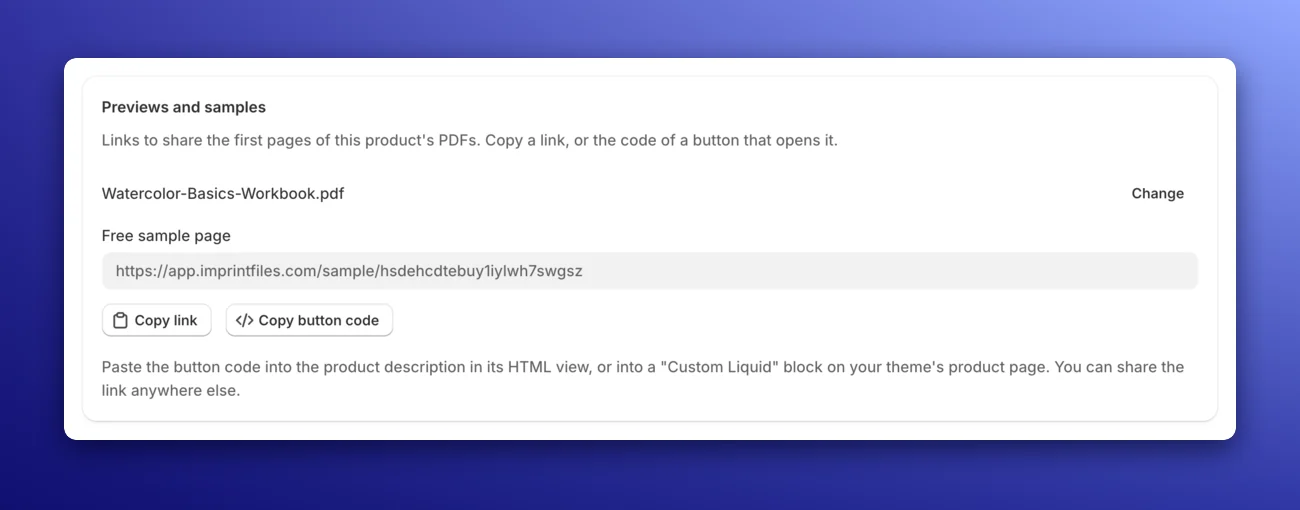
On an older theme, or to put a button inside the description, click Copy code under Button code in the Free sample section. In the product's description in Shopify, click Show HTML, the </> button, paste the code and save. You'll get a Get a free sample button that opens the sample page.
The sample page link
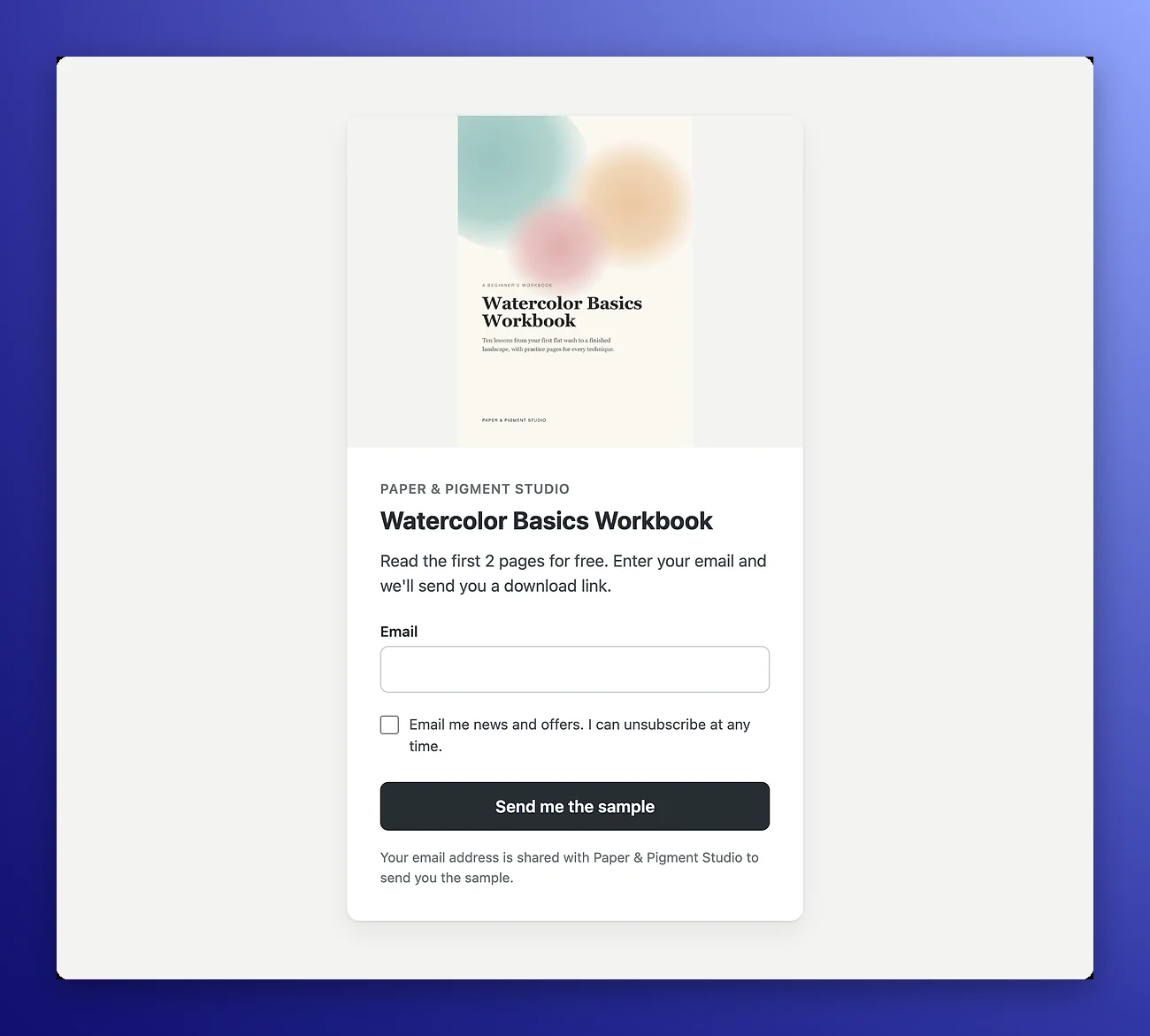
The sample page is hosted by Imprint and shows the product's title and image, the email field and your consent text. Share its link wherever you talk about the product: your newsletter, social media posts, link-in-bio pages, ads, or a free resources page on your store.
You can copy the sample page link and button code from the product's page in Imprint too, without opening the PDF's page.
What the visitor gets
The email's subject is Your free sample of followed by the product's name, and it has a Download your sample button. It's sent like your download emails, from your own email server if you've set one up.
The downloaded file's name ends in _sample. Your watermark is stamped on it with the visitor's email, the word Sample in place of the order number, and a copy code. If someone shares the sample, you can look the code up and see whose sign-up it came from.
If the same person asks for the same sample again while their link still works, Imprint sends the same link again, without adding downloads.
Follow up with the people who sign up
Every sign-up is added to your Shopify customers, or updated if they're already a customer, with these tags:
imprint-sampleon every sign-upimprint-sample-followed by the product's handle, for exampleimprint-sample-watercolor-workbook- any extra tags you set under Settings → Samples
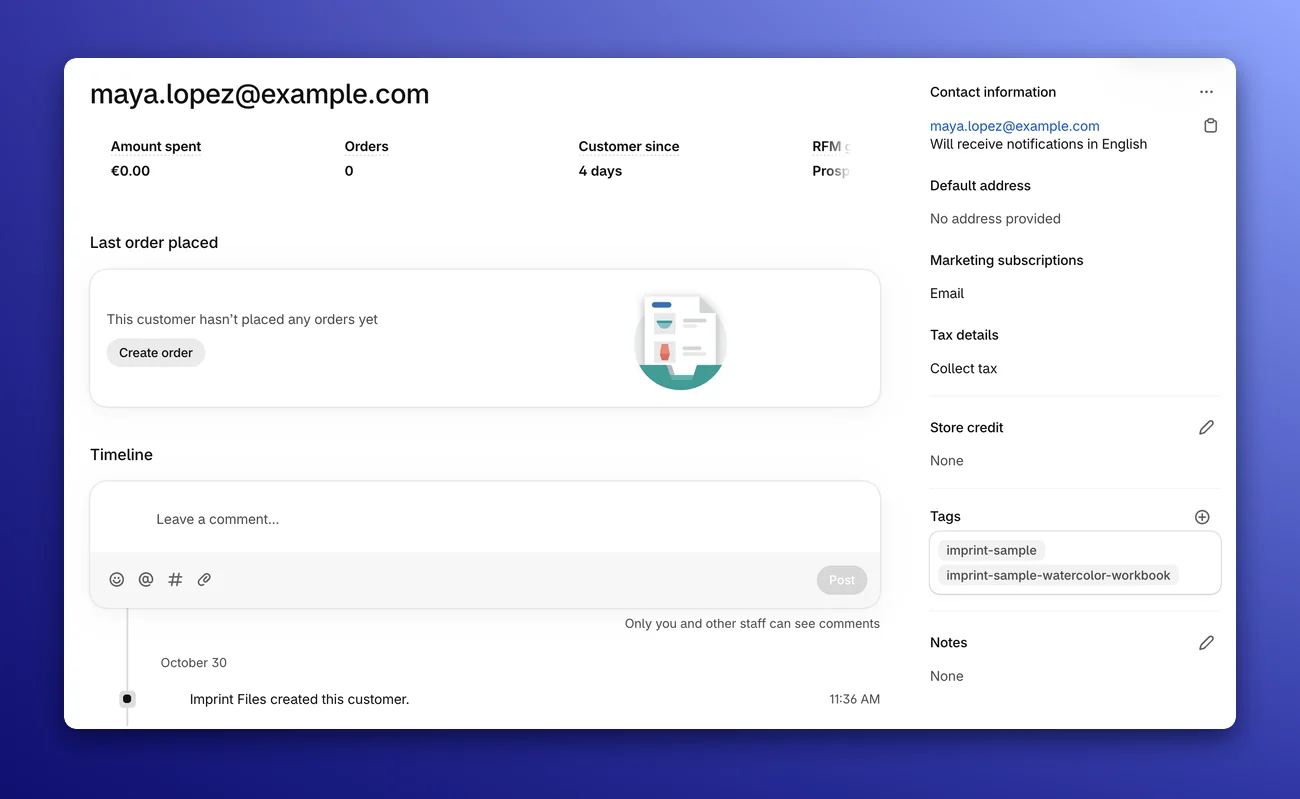
Use the tags to start a follow-up:
- Shopify Email: create an automation for customers who get the
imprint-sampletag, or the tag of one product. - Shopify Flow: start a workflow with the Customer tags added trigger and check for the tag.
Keep the follow-up short and tied to the sample. A message a day or two after the download can say what else is in the full PDF. A later one can offer a discount for people who haven't bought yet. Shopify Email sends marketing emails only to subscribed customers, so people who left the consent box unticked won't get them.
To see how many sign-ups later bought something, filter your customers by the product's tag and look at their orders, or create a customer segment such as customer_tags CONTAINS 'imprint-sample-watercolor-workbook' AND number_of_orders > 0.
Before you share it
- Sign up with your own email address and check that the email arrives. Look in the spam folder too.
- Download the sample and check the stamp on several pages.
- Try the form on a phone.
- Read the consent text again, and make sure it says what you'll send.
- If the sample uses the preview, check that the public preview link is off.
- Set up the follow-up automation before you promote the sample, so early sign-ups get it too.
For every setting and option, see Free Samples in the docs.
More guides
- How to add a free PDF preview to your Shopify product pageLet shoppers read the first pages of your PDF before they buy. Choose the pages and the overlay text, then add a preview button to your Shopify product page.
- How to sell PDFs on Shopify and limit sharingSet up PDF sales on Shopify, then cut down on sharing with per-customer links, download limits, stamped buyer details and copy codes. Launch checklist included.
- How to find out who leaked your PDFFound your PDF shared online? Learn what the copy can tell you, from the stamp and copy codes to metadata and hidden marks, and what to do next, step by step.
- How to send a DMCA takedown notice for a leaked PDFWhat a DMCA notice must include under 17 U.S.C. § 512(c)(3), where to send it, a copy-paste template, and the EU alternative under the Digital Services Act.
- Visible vs invisible PDF watermarks: how each protects your filesCompare visible PDF stamps and hidden tracing marks: how they can deter sharing, help trace a leaked copy, and hold up against cropping, editing and printing.