Copy Tracking
Give every download its own code, see each download in the order's Download Log, and open the order behind any code you find.
A watermark with the customer's email tells you who bought a file. Copy tracking goes one step further: every single download gets its own code, so a file you find shared online leads you straight back to the order, and to the exact download it came from.
🔑 Copy Codes and Licence Codes
Imprint uses two kinds of codes:
- Copy code (for example
IMP-7K3QZ9M2PXP): one per download. If a customer downloads the same file three times, each of those copies gets a different code. - Licence code (for example
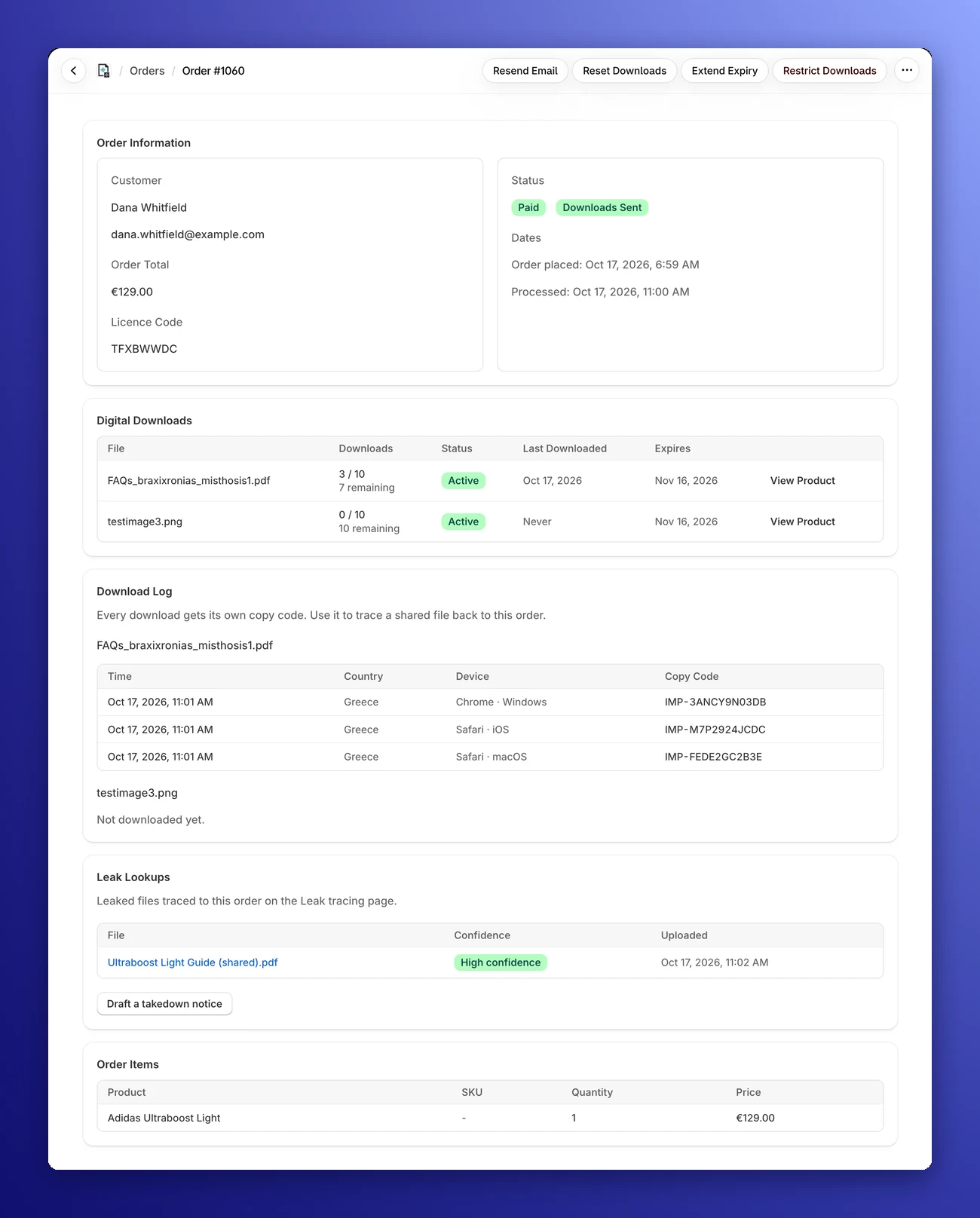
H4R8TW2N): one per order. It's the same on every file in the order, and you'll see it as Licence Code under Order Information on the order page.
Every download is recorded with a copy code, whatever the file type. Only PDFs can carry the code inside the file itself, through the watermark or tracing marks.
🤔 Why a Code Beats an Email
You can keep the email in your stamp as a visible deterrent. Adding a code makes tracing much more reliable:
- It points to one download, not just a customer. You see when the copy was downloaded, from which country and on which device.
- It doesn't expose personal data. If the file leaks, strangers see a short code, not your customer's email address or name.
- It keeps working after a data deletion request. If a customer's personal data is erased at their request, their details are removed from the order, but the code still leads to that order.
- It forgives typos and misreads. Codes avoid letters that look alike, and Imprint ignores upper and lower case, spaces and hyphens, and reads I and L as 1 and O as 0. A copy code also has a built-in check, so a mistyped code is rejected instead of opening the wrong order.
📝 Adding the Code to Your Watermark
On the Watermark Settings page you can put the codes in your stamp in two ways.
Variables
In Watermark Text, click the Copy Code or Licence Code button to insert:
{copy_id}: the unique code of each downloaded copy.{licence_id}: the licence code of the order, the same on every file in it.
Example: Licensed to {name} - {copy_id} becomes Licensed to Jane Doe - IMP-7K3QZ9M2PXP.
Always append the copy code
The Copy code section has one switch: Always append the copy code.
- On: the copy code is added to the end of the stamp (for example
[email protected] - IMP-7K3QZ9M2PXP). With Display on multiple lines on, it goes on its own last line instead. - It's skipped when your template already contains
{copy_id}, so the code never appears twice. - New stores start with it on. Stores that were already using Imprint before copy tracking arrived start with it off, so their stamps don't change until they switch it on.
The Preview shows a sample code, so you can see where it lands before you save.
The code only appears in the stamp when the watermark is applied to that PDF. To hide the code in every PDF download, even with the watermark off, use tracing marks (Premium).
📋 The Download Log
Open any order from the Orders page to see its Download Log. For each file in the order it lists:
- Time: when the file was downloaded.
- Country: where the download came from, when it's known.
- Device: the browser and operating system (hover to see the full details).
- Copy Code: the code of that downloaded copy.
A few things to know:
- Each file shows its 50 most recent downloads.
- Files nobody has downloaded yet say Not downloaded yet.
- Downloads made before the download log was added aren't listed. The order's download count still includes them.
- Country and device details are kept for 24 months. After that they're removed, but the download, its time and its copy code stay, so it can still be traced.
- Imprint never stores your customers' IP addresses as they are. It keeps only a scrambled version that can't be turned back into the address, and removes that after 24 months too.
On the Premium plan, the order page also has a Leak Lookups section that lists leaked files traced to the order. See Leak tracing.
🔍 Find Order by Code
Found a code on a shared file? Go to the Orders page and use Find Order by Code at the top.
- Type or paste the copy code or licence code.
- Click Find.
- Imprint opens the order the code belongs to. For a copy code, look it up in the order's Download Log to see which download it was.
If something goes wrong, you'll see one of these messages:
- "That is not a valid copy code or licence code." Check it for typos and try again.
- "No order matches this code." The code isn't from any of your store's orders.
- "This copy code is from one of your downloads, but its order is no longer in Imprint, so there is no order to open." The download was made in your store, but its order has since been removed from Imprint.
Only your own store's orders are searched. The box appears once your store has orders.
🔗 Related Pages
- Tracing Marks: hide the copy code inside every PDF download.
- Leak Tracing: upload a leaked file and let Imprint find the codes for you.
- Takedown Notices: ask a website to remove leaked copies.