Free Sample Block
Add Imprint's Free sample block to your product pages in the Shopify theme editor, as a button to the sample page or an email form, without editing any code.
Last updated
The Free sample block puts your free sample on your product pages, either as a button that opens the sample page or as an email form that shoppers fill in without leaving your store. You add it in the Shopify theme editor without editing any code.
The block needs a theme that supports app blocks, which includes every Online Store 2.0 theme, such as Dawn. On an older theme, use the button code from the PDF's page instead (see Free Samples).
Set Up the Sample First
The block shows the sample of the product's first PDF that has one, so turn on a free sample in Imprint before you add the block. Until then, the block is hidden from shoppers.
Open the Theme Editor
In your Shopify admin, go to Online Store → Themes and click Customize on your theme. Then use the page menu at the top of the editor to open Products, and choose the product template you use.
Add the Block
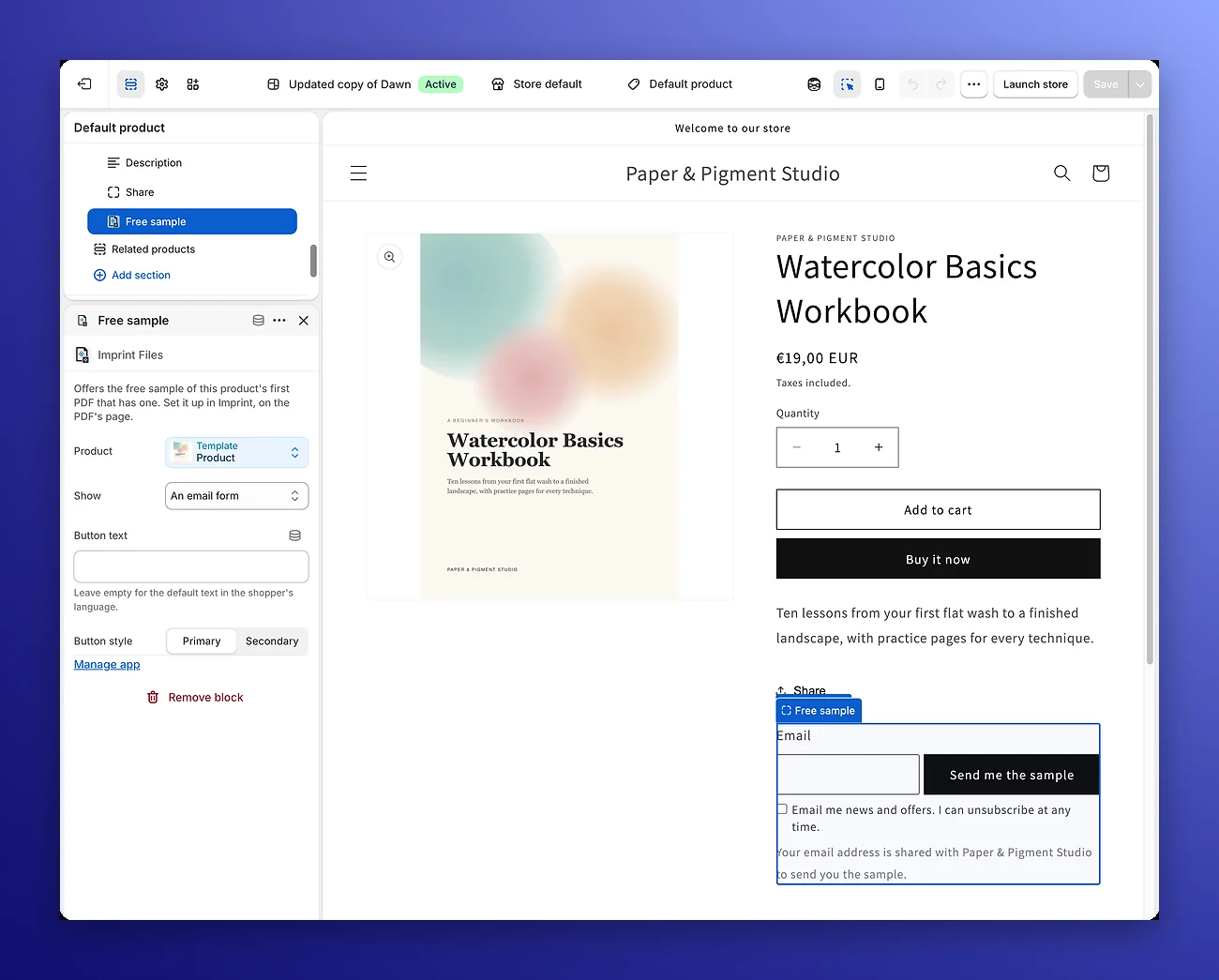
In the sidebar, under the product information section, click Add block. Open the Apps tab and choose Free sample. Drag the block to where you want it, for example under the Buy buttons.
Choose the Settings
- Product: the product whose sample the block offers. It's filled in with the product on the page, so you can leave it as it is.
- Show: A button to the sample page, or An email form.
- Button text: leave it empty to use the default text in the shopper's language: Get a free sample for the button, or Send me the sample for the form.
- Button style: Primary or Secondary, using your theme's button styles.
Save
Click Save. The block now appears on every product page that uses this template and has a free sample.
What Shoppers See
A button to the sample page
A button that opens the product's sample page, where the shopper enters their email.
An email form
An Email field and a button, with your marketing consent box under them and a note that the email address is shared with your store to send the sample. The form is in your storefront's language, and so is the email with the link.
After signing up, the form is replaced by a Check your inbox message. If you set a Redirect URL under Settings → Samples, the shopper goes to that page instead.
Sign-ups from the form work like sign-ups on the sample page. They get the same email and download link, and they're added to your Shopify customers with the same tags.
When the Block Is Hidden
The block doesn't show to shoppers when:
- The product has no PDF with a free sample turned on.
- Your store is on the Free plan.
In the theme editor, the block shows a note in these cases, so you can see where it is. Shoppers never see the note.
The block talks to Imprint through /apps/imprint. This is the address of Imprint's app proxy in your store. If you changed it in your Shopify admin, the block can't load the sample, so change it back to /apps/imprint.
Related Pages
- Free Samples: setting up a sample, the sample page, customer tags and sample settings.
- Public Previews: share the first pages of a PDF with anyone, on every plan.
Free Samples
Offer a free sample of your PDF in exchange for an email address. Visitors get a download link by email, and each sign-up becomes a tagged Shopify customer you can follow up with.
Copy Tracking
Give every download its own copy code, stamp it on your PDFs, see each download in the order's Download Log, and open the order behind any code you find.