# Managing Orders (/docs/orders)
The **Orders** page is your central hub for tracking who has purchased your files and more importantly, whether they have successfully downloaded them.
Imprint syncs with Shopify automatically. When a customer buys a product, the order appears here instantly. It shows as **Pending** for a moment while Imprint sends the download links, then as **Processed** and **Paid**.
---
## The Orders List [#the-orders-list]
At a glance, this list tells you the story of every sale. You don't need to click into an order to see if a customer is happy.

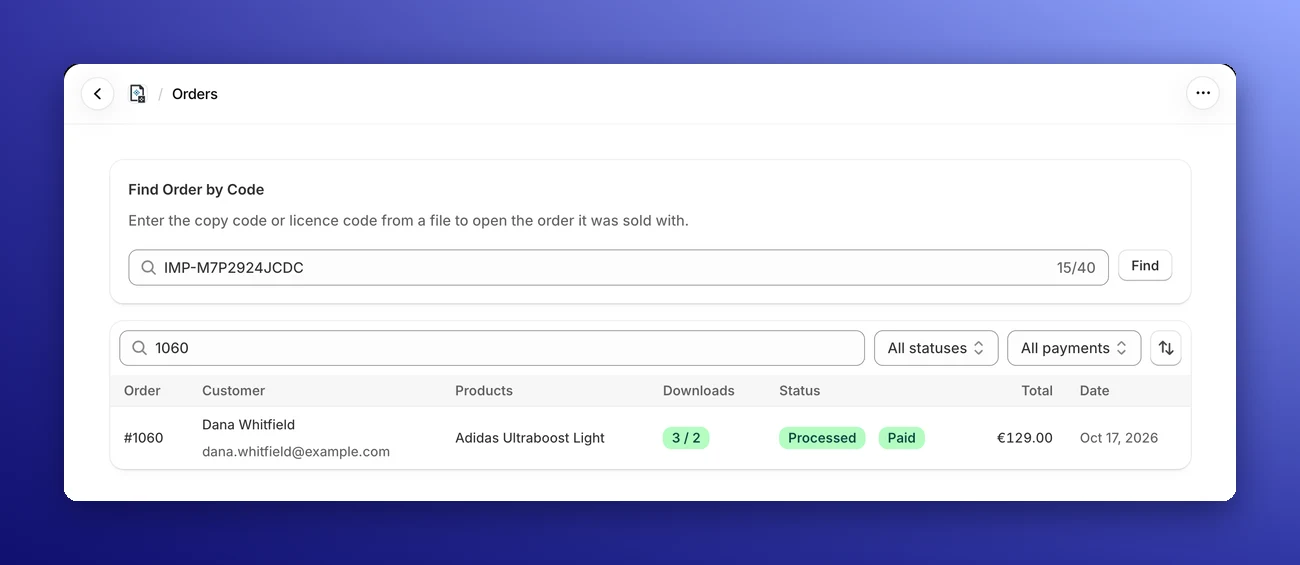
- **Search & Filter:** Quickly find a specific transaction by typing the **Order #**, **Customer Email**, or **Name** in the search bar. Use the **Status** filter (Processed, Pending, Failed) and the **Payment** filter (Paid, Pending, Refunded, Partially refunded) to narrow the list, and the sort button to order it by **Date**, **Order number**, **Total** or **Customer**.
- **Downloads Column:** This is your "Is everything okay?" indicator. It shows how many downloads the customer has made, next to the number of files in the order (e.g., `1 / 2` means 1 download so far, for an order with 2 files). The first number counts every download, so it can go higher than the second.
- **Status Column:** Shows whether the links were delivered (**Processed**, **Pending** or **Failed**), the payment status, and **Restricted** if you've blocked the order's downloads.
---
## Find Order by Code [#find-order-by-code]
Found one of your files somewhere it shouldn't be? Every download gets a **copy code** (like `IMP-7K3QZ9M2PXP`) and every order a **licence code** (like `H4R8TW2N`). If your watermark or tracing marks put them in the file, they lead you back to the order.
Type or paste either code into the **Find Order by Code** box above the orders list and click **Find**. Imprint opens the order it belongs to. Don't worry about upper or lower case, spaces or mixing up look-alike characters such as `O` and `0`: Imprint handles them, and it tells you when a copy code has a typo instead of opening the wrong order.
[Learn more about copy tracking](/docs/copy-tracking)
---
## Order Details & Actions [#order-details--actions]
Clicking on any order (like **Order #1004**) opens the detailed view.

The **Order Information** box shows the customer, the order total, the order's status and dates. On the Basic plan or higher, it also shows the order's **Licence Code**: one code for the whole order, the same on every file in it. An order a company placed through Shopify B2B also shows a **B2B** badge and a **Company** line. See [B2B Orders](#b2b-orders).
Under **Digital Downloads**, every file in the order is listed with its downloads used and remaining, whether the link is **Active**, **Expired** or has hit its **Limit Reached**, when it was last downloaded, and when it expires.
At the top right, you will find four powerful buttons to handle common scenarios:
### 1. Resend Email [#1-resend-email]
- **Use when:** A customer says, "I never received my download link!"
- **What it does:** Immediately triggers a fresh email with the download links to the customer's inbox. The customer gets the same links as before, and their download counts are not reset.
- **Good to know:** The button is unavailable for a moment while a new order is still being processed. If **Send download emails to customers** is switched off in your [Email Settings](/docs/email-settings), no email is sent.
### 2. Reset Downloads [#2-reset-downloads]
- **Use when:** A customer says, "My computer crashed while downloading and now I reached my limit!"
- **What it does:** Resets the download count of every file in the order to zero, giving the customer a fresh start to retrieve their files.
- **Just one file?** Each file under **Digital Downloads** has its own **Reset** button, which resets the download count of that file's link only. It is greyed out while the file hasn't been downloaded.
### 3. Extend Expiry [#3-extend-expiry]
- **Use when:** A customer emails you a week later saying, "I forgot to download my files and the link expired."
- **What it does:** Click **Extend by 7 Days** to make every download link in the order valid for another 7 days from today, reactivating expired links. A link that had more than 7 days left is also set to 7 days from today.
### 4. Restrict Downloads [#4-restrict-downloads]
- **Use when:** You suspect a customer is sharing their download link.
- **What it does:** Immediately revokes access. Even if the customer has the email, the links will stop working. You can add an optional message that the customer sees when they try to download.
- **Changed your mind?** Click **Remove Restriction** to give the customer their access back.
---
## B2B Orders [#b2b-orders]
If you sell to companies with Shopify B2B, Imprint marks the orders they place. On every plan, the order page shows:
- A **B2B** badge among the order's status badges.
- A **Company** line under the customer, with the name of the company that placed the order.
{/* TODO screenshot: the Order Information box of a B2B order, with the Company line under the customer and the B2B badge among the status badges */}
Imprint asks Shopify for the company's name when the order is paid. If Shopify doesn't answer, Imprint tries again over the next 20 minutes or so. Until the name arrives, the order shows the B2B badge without the Company line. If you have the order open while Imprint processes it, the name appears by itself. If it arrives later, reload the page.
Imprint gets the name once. If you rename the company in Shopify later, the order keeps the name it had.
### The Company in Your Stamp [#the-company-in-your-stamp]
On Premium, [`{company}`](/docs/watermark-settings#available-variables) in your watermark text stamps this company's name. On Basic, it stamps the company from the order's address, which can be a different name. See [B2B Company Names](/docs/watermark-settings#b2b-company-names) for an example, and [Licence Stamping](/docs/licence-stamping) for licence stamps with the company's name.
### Good to Know [#good-to-know]
- **Older orders:** Orders that reached Imprint before B2B support was added aren't marked B2B, and their stamps use the address company.
- **Payment terms:** Orders reach Imprint when they're paid. A B2B order on payment terms, such as Net 30, appears on the Orders page and gets its download links once it's paid.
- **Data deletion:** When Shopify asks to erase a customer's data, the company name is erased from the order too. The order keeps its B2B badge.
---
## Failed Orders [#failed-orders]
Sometimes the download email can't be delivered, for example when your own email server (custom SMTP) refuses to send it. The order is then marked **Failed**, and its page shows a **Downloads could not be delivered** banner with the error message.
1. Fix the cause. If it's an email problem, the **Email Settings** button in the banner takes you straight to your [Email Settings](/docs/email-settings), where you can send yourself a test email.
2. Click **Retry** in the banner. Imprint processes the order again and sends the download email.
You can also use **Resend Email** on a failed order. While an order is pending, its page updates by itself, so you'll see the result without reloading.
---
## Download Log [#download-log]
The **Download Log** on the order page lists every download of every file: when it happened, the country, the device (browser and operating system), and the **Copy Code** that download got. It shows the 50 most recent downloads per file.
Each copy code points to one single download, so if a copy of your file turns up online, the code in it tells you exactly which download it was. Downloads made before the Download Log was added aren't listed. After 24 months, the country and device are removed from a download, but its copy code stays.
[Learn more about copy tracking](/docs/copy-tracking)

---
## Leak Lookups [#leak-lookups]
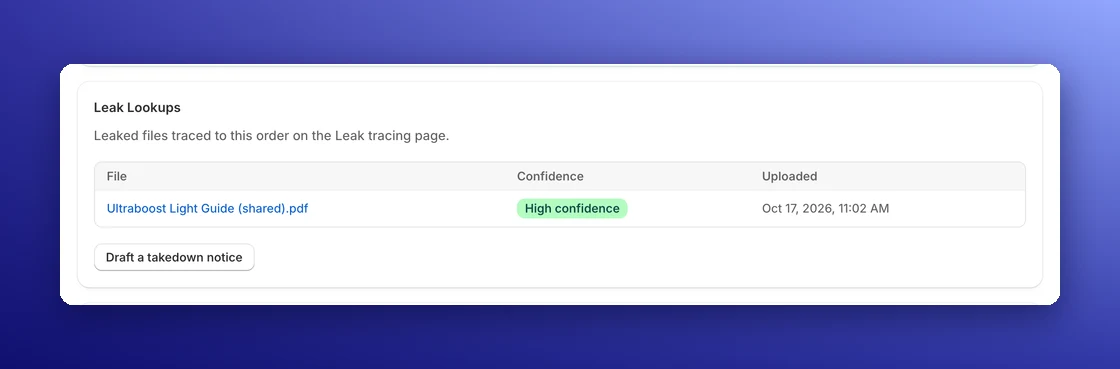
When you trace a leaked file on the [Leak tracing](/docs/leak-tracing) page and it matches an order, the lookup also appears in the order's **Leak Lookups** section, with the file name, the **Confidence** of the match and the date you uploaded it. Click a file to open the full result.
From here, you can click **Draft a takedown notice** to ask a website to remove the copies. See [Takedown Notices](/docs/takedown-notices).
---
## Automatic Fulfillment [#automatic-fulfillment]
Once a paid order's download links have been delivered, Imprint marks its digital items as **fulfilled** in Shopify for you. Physical items in the same order are left for you to fulfill. You can turn this off under **Settings → Orders**. See [Order Settings](/docs/order-settings).
---
## Handling Refunds & Cancellations [#handling-refunds--cancellations]
You don't need to worry about manually restricting access when you issue a refund. Imprint listens to your Shopify store in real-time.
When you process a refund inside your **Shopify Admin**, Imprint automatically syncs the status and adjusts access permissions instantly:
* **Full Refunds:** If you refund the entire order, **all** download links associated with that order are immediately invalidated. The customer will no longer be able to download any files.
* **Partial Refunds:** If you refund only some of the products in an order (e.g., just the "Video Add-on"), Imprint revokes the download links of the **refunded products**. The customer keeps access to the other products. A refund that includes a product revokes all of that product's links on the order, whatever quantity you refund: refunding 2 of 30 copies revokes the link for all 30. See [Refunds and Licences](/docs/licence-stamping#refunds-and-licences).
* **Cancelled Orders:** If you cancel an order in Shopify, Imprint restricts all of its downloads automatically.